Comments and reactions
Pause where something needs saying and write it there. Pin the comment to that second, so nobody has to ask "where?".
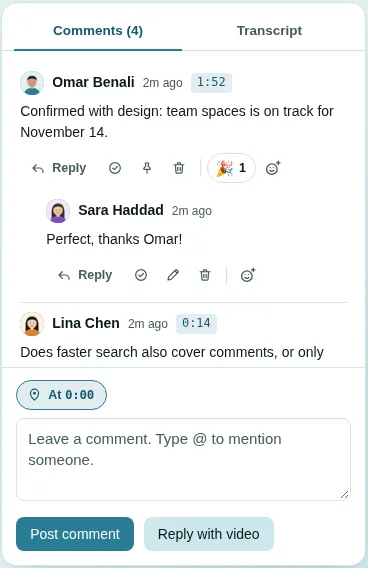
Comments pinned to a moment
- Pause the video where something needs attention.
- The chip above the comment box shows Pin to 0:42: a new comment is about the whole video unless you click it. Click it to pin your comment to that second; it then reads At 0:42, and its × takes the pin off again. The app's chip works the same way. The chip only decides for the comment you are writing; to take a posted comment off its moment, use its Unpin from its moment button (below).
- Write and press Post comment (or Enter; Shift+Enter adds a new line).
Leave the chip as it is for a general comment about the whole video.
Pinned comments appear as markers on the timeline. Click a comment's timecode to jump the video there.
Replies, mentions and moderation
- Reply starts a thread under a comment. A reply shares its parent's moment.
- Type @ to mention a teammate. Use ↑/↓ and Enter to pick, or Esc to close the list. They are notified. In a posted comment the mention shows as on a social network: the name, without the @, in bold in the team's colour on a faint wash of it, a shade stronger when it is you (on the website and in the app).
- Resolve (✓) marks a point as dealt with. The author, the video's owner and admins can resolve.
- Pin to top keeps a comment at the top. Only the video's owner and admins can pin.
- Unpin from its moment (the × on the comment's time badge, or the crossed-out pin among its buttons) takes a comment off the second it was pinned to: it stays in the thread, but loses its time and its pin on the timeline. For the comment's author, the video's owner and admins.
- Pin to this moment (the map pin, on a comment with no time; in the app, Pin to and the time) pins it to where the video is now, so an unpinned comment can be pinned again, at the same second or another. Move the video to the second first. Same people as unpin.
- Edit (pencil) is for the author only.
- Delete (bin) is for the author, the video's owner and admins. Deleting a comment takes its replies with it.
- A comment can be up to 4,000 characters.
Pictures in comments and replies
Press Picture (in the comment box, or in a reply box) to add up to four pictures, a screenshot say; each shows as a small preview with × to drop it. A comment can be pictures alone, words alone, or both. Pictures are shrunk to at most 1600 pixels on the long side before they are sent. In the thread they show small, side by side; click one to see it large over the page (‹ › or the arrow keys go between a comment's pictures, Open original opens the file, ×, Esc or a click beside it closes). In the Android app, the picture button in the comment box does the same, and a tap on a picture shows it full screen. Guests on a shared link see pictures but cannot send them.
Reactions on a comment
The smiley button adds an emoji reaction to a comment. Each person has one reaction per comment: picking the same emoji again removes it, and picking another swaps it.
Reactions on the video ("moments")
The row of emoji under the video leaves one at the current second: 👍 😂 🔥 😮 👏. They move the way Facebook's reactions do: the one you point at springs up with its name above it while the others step back, each makes its own movement (the thumb nods, the laugh rocks, the flame flickers, the face gasps, the hands clap), and a tap bursts it. In the app, holding one makes it swell and a tap bursts it. Each emoji shows how many people picked it; reactions are not drawn on the timeline, which keeps it clear for comments. Each person has one per video, like a vote: your pick is ringed, another emoji replaces it (at the new second), and the same one again takes it back.
Reply with a video
Reply with video records a short camera reply, or your screen if you tick Share my screen instead (your microphone is recorded with it by default, mixed with the screen's own sound when the browser shares that too), and attaches it to the conversation. A video reply shows in the thread as a card of its own: the picture left clear, a Video reply tag, and along its foot a play button, who recorded it, the time, the sound and full screen, over a line you click or drag to go to any moment. In full screen the reply is framed on black, under a bar saying whose reply it is with a ✕ to leave, so a reply that recorded a whole screen is never taken for the page itself. The reply you just recorded plays back in the same card before you post it. In the app, the card shows in the comments too and a tap plays the reply. It does not appear in the library on its own. Posting one needs the member role or above, since it is an upload.
Guests
People watching through a share link can comment, react and drop moments without an account. They type a name the first time, and their comments are marked guest. Links made in the share dialog always allow comments; turning them off is an API option (see Sharing).
Comments made on the share page notify the video's owner.