Transcripts and summaries
Add one AI key to your team, and every video gets a transcript, captions, search inside what was said, and a summary with key moments, action items and chapters.
This is optional, and it uses your own AI key.
Turn it on (team owners and admins)
- Go to Settings → Transcripts and summaries.
- Choose a Provider.
- Click Get a key ↗, create a key on the provider's site, and paste it into API key.
- Press Save, then Test. You should see ✓ Connected. It works.
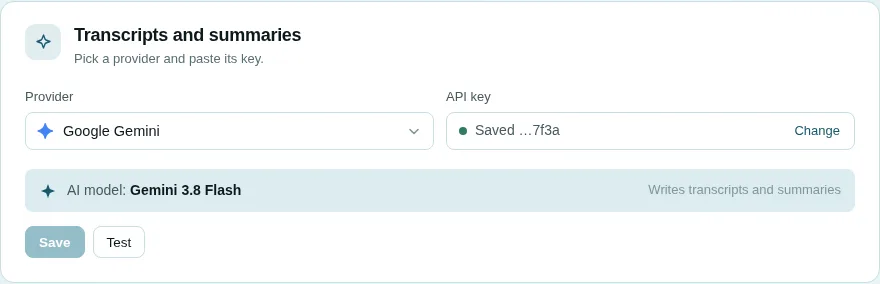
You do not choose a model. Each provider comes with one model that can both listen to audio and write the summary, and the page shows which one:
| Provider | Shown as | Model id | Notes |
|---|---|---|---|
| Google Gemini | Gemini 3.8 Flash | gemini-3.8-flash |
Has a free tier; no card needed for a key. Recommended. |
| OpenAI | GPT Audio 1.5 | gpt-audio-1.5 |
OpenAI's model that takes audio in Chat Completions. Paid. |
| Alibaba Qwen | Qwen3.8 Omni Flash | qwen3.8-omni-flash |
Through Alibaba Cloud Model Studio (international endpoint). |
A team that was already set up with a self-hosted, OpenAI-compatible server (the old Anything OpenAI-compatible option, with a Base URL) keeps seeing that option; it is not offered to anyone else.
- Once saved, the key shows as Saved …abcd with a Change button. Cancel goes back to the saved key.
- The key is encrypted before it is stored, and it is never shown again.
- One provider and one key cover the whole team, for both jobs.
- If the server's operator set a provider for everyone, the page says Using …, set by the administrator until you choose your own.
Test checks text, not audio
Test sends a short text request to prove the key and model work. It does not send audio.
What happens after you publish
- A minute or so after publishing, the Transcripts tab fills in. Recordings published before AI was turned on are caught up automatically, newest first.
- When the transcript is ready, captions become available (CC button), and the words become searchable from the library.
-
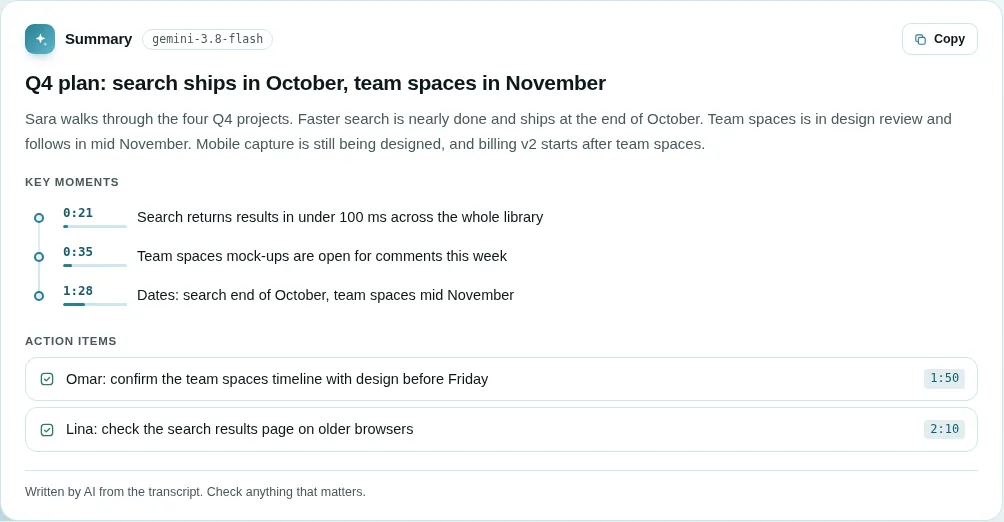
Then the summary appears under the video:
- a one-line headline;
- a short summary;
- a topics map: a coloured ribbon the length of the video, one part per topic, with the playhead running over it, and a card per topic with its time range and a few sentences on what was said. The topic playing now is lit. Click any part of it to play that topic. The Android app shows the same map (version 0.1.5 and later);
- key moments and, if any, action items, each a row you can click anywhere on to play from its moment;
- chapters on the timeline, split by topic. These are added only if nobody added chapters by hand.
The summary has a Copy button and ends with "Written by AI from the transcript. Check anything that matters."
While it is being written, the box says "Writing the summary…".
AI is set per team. If the video's team has no key, the people who manage the video see "Transcripts and summaries are off" under it instead; team admins get a Turn on button that opens that team's settings at the right section. Once a key is added, existing videos are transcribed and summarised too, newest first.
The Transcript tab
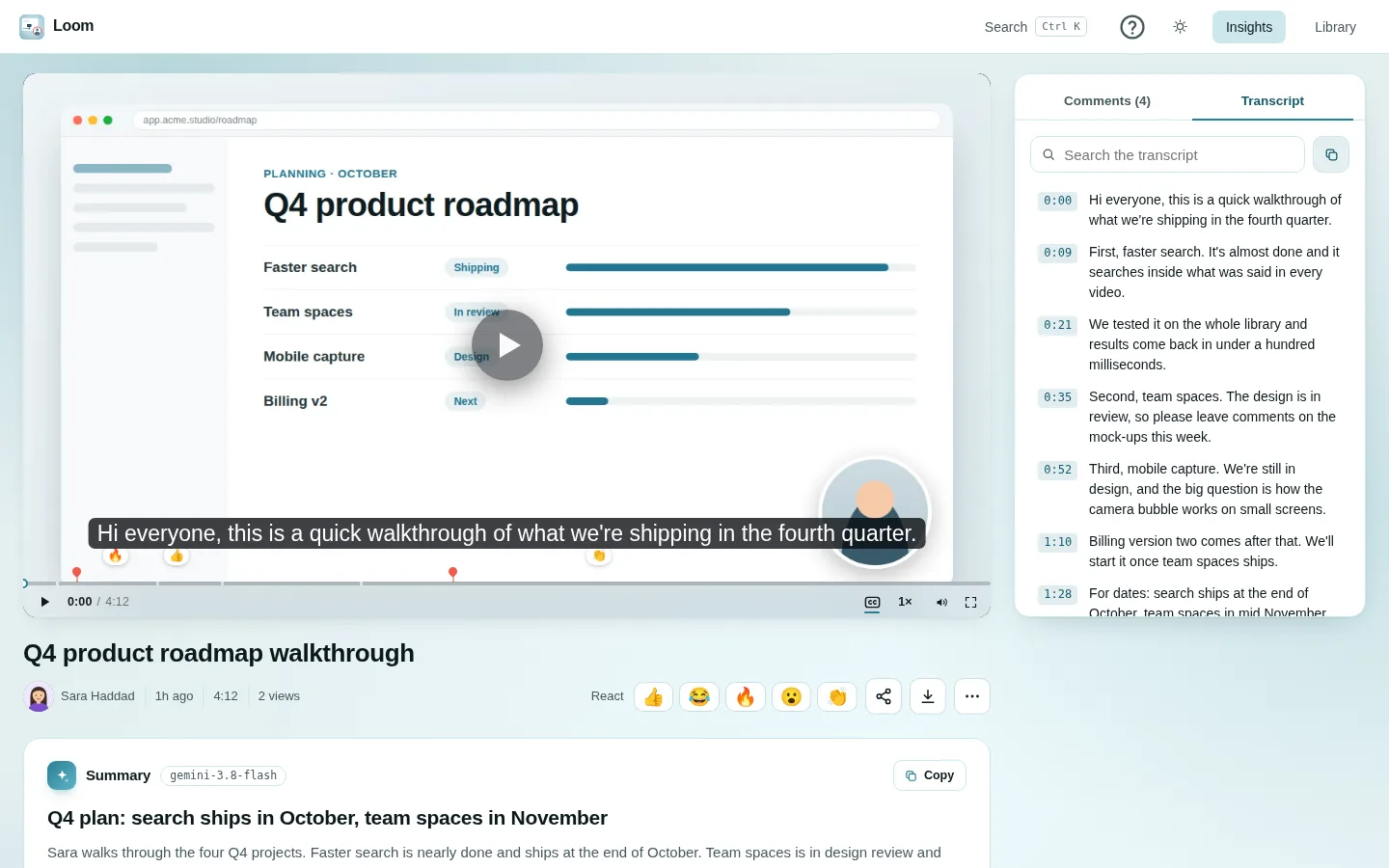
- Every line has its time. Click a line to jump there.
- The line being spoken is highlighted as the video plays.
- Search the transcript highlights matches.
- The copy button copies the whole transcript.
- Write it again (the video's owner, on the website and in the app) transcribes the recording again after you confirm, and the summary is written again after it.
Names
A speech model hears a name it does not know as one it does: "Mohammed Al-Juhani" can come out as "Muhammad Ali", and "Vistilla" as "Visla". So the engine is told the names to expect: the app's own, the person who recorded the video (most likely the one speaking) and the people of its channel. The summary is told the same, and who recorded the video, so it names them rightly even where the transcript misheard. A video transcribed before this keeps its old text until it is written again.
In English or Arabic
The transcript and the summary are shown in the language Vistilla is in: in Arabic when you chose Arabic (EN | ع on the website, Settings → Language in the app), in English when you chose English. Subtitles and the chapters the AI drew on the timeline follow; chapters a person added stay as written.
- A recording spoken in the other language is translated by AI the first time someone reads it that way. Until then the original shows, with Translating into Arabic… above it; it takes a few seconds to a minute.
- The translation is kept, so the next reader gets it at once. If the transcript is written again, so is the translation.
- It uses the team's AI provider (the one that writes summaries), so it needs one to be set.
Videos with no speech
Before anything is sent to the AI, Vistilla measures the sound. If the recording is silent (its loudest moment is below −50 dB), nothing is sent: the Transcript tab says No speech, and no summary is written. AI models otherwise tend to "hear" words in silence.
The three listed providers guess timings rather than measure them, so Vistilla gives them the sound in windows whose start times it knows: 30 seconds each, or one minute past 30 minutes. Silent windows are skipped the same way. A two-hour meeting takes about 120 requests, which fits a free Gemini key, waiting out its per-minute limit as it goes. (A Whisper-style engine, which measures timings itself, gets the whole sound track in one go.)
If something fails
The Transcript tab (or the summary box) shows the reason, and anyone who can edit the video (its owner and the team's admins) gets a Try again button. Common reasons are:
- a wrong or expired key;
- a provider quota being exceeded;
- a recording too large for the provider.
Fix the key under Settings and press Try again.
For how this works inside, see the AI pipeline.