Getting started
Make a team, confirm your email with a code, and Vistilla's guided tour shows you around. It takes about two minutes.
Create a team
A team is your company's or group's space in Vistilla. It holds channels, and channels hold collections and recordings. The person who creates a team is its owner.
- Open the site and choose Create a team.
- Fill in your name, email, a password (at least 8 characters) and,
optionally, a team name.
- Team names are unique, like usernames, and cannot contain spaces.
Use a dash instead, for example
my-team. - While you type, the form says whether the name is still free.
- Leave it empty and Vistilla names it after you, for example
Ann-Bee-team.
- Team names are unique, like usernames, and cannot contain spaces.
Use a dash instead, for example
- Press the button. Vistilla emails you a 6-digit code.
- Type the code. Your account and team are only created once the code matches, which proves the email address is yours.
About the code
- On a server with no email set up, the code is written to the server's log instead, for the operator to pass on.
- It works for 15 minutes.
- After 5 wrong attempts it is blocked, and you need a new one.
- Send a new code works again after 30 seconds.
- Change details takes you back to the form.
Your new team comes with one channel called General (عام if you sign up in Arabic), and you are its owner.
Joining by invitation
If someone invited you, open the link in the invitation email (Accept invitation).
- New to Vistilla? Choose a name and a password and you are in. No code is needed, because the invitation link already proves the address is yours.
- Already have an account? Sign in with it, and the team is added to the ones you already have.
Invitations expire after 14 days.
Not in a team yet?
If you are signed in but belong to no team (for example, you were removed from the last one), the library says You're not in a team. Ask someone to invite you, or use the Or start your own team form on that page.
Signing in and out
- Sign in with your email and password on the home page.
- Sign out from the menu under your avatar (top right).
- A session lasts 30 days by default. Changing or resetting your password signs you out everywhere.
Forgot your password
- On the sign-in form choose Forgot your password?
- Enter your email. Vistilla emails a reset link (Choose a new password).
- The link works once and expires after one hour.
The guided tours
Every main page has a short, hands-on tour. Vistilla dims the screen, lights up one real control at a time, and a card explains it. You learn by using the app itself:
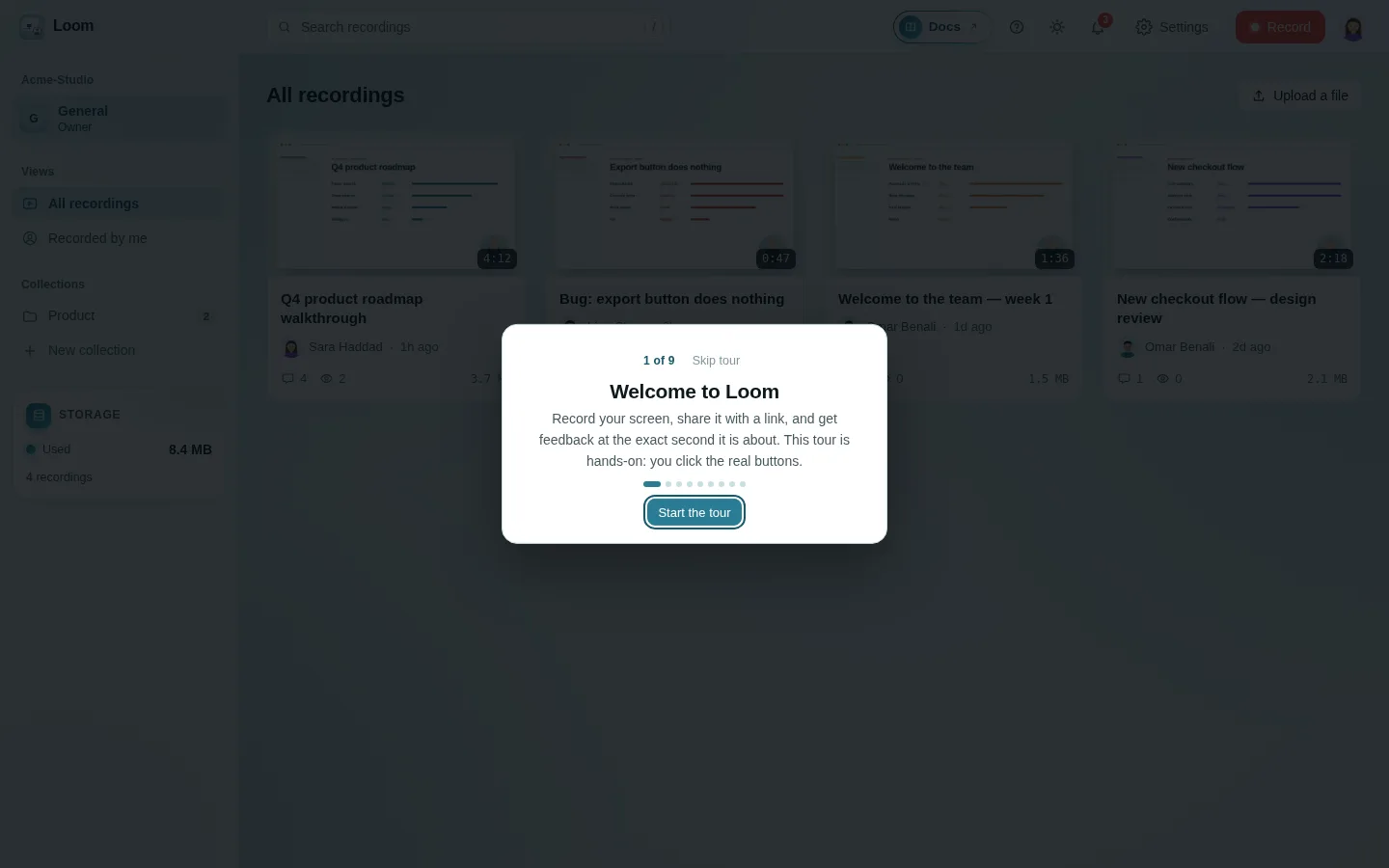
- Every step has Back and Next. The card shows the step number and a progress line, and says what the lit control does in a sentence or two.
- You can also click the lit control to try it: it does its real job (the theme switches, the transcript tab opens…) and the tour moves on. A few are only shown, because using them mid-tour would get in the way (the share window, downloads, reactions).
- A control that leads to another page (Record at the end of the library tour) goes there when clicked, and the tour ends; that page has its own tour behind its ? button.
| Page | The tour shows |
|---|---|
| Library | your team (switch, new team, team color), channels, collections, views, storage, search, your recordings, upload, docs, light/dark, activity, your account menu (teams, new team, Settings, the tour, sign out), keyboard shortcuts, then Record |
| Recorder | the three steps, screen, screen and camera, camera, your voice, computer sound, blur, what happens while and after you record, light/dark, then Start recording |
| Video page | play, the timeline, skip silences, captions, speed, sound, full screen, reactions, share, download, more, link buttons, summary, the moment chip, comments, video replies, transcript, insights, search, light/dark, keyboard shortcuts |
| Settings | the team's channels, then each section (people, invites, account, AI), delete channel, docs, light/dark |
| Share page (guests) | play, the timeline, skip silences, speed, sound, full screen, reactions, link buttons, your name, comments, download, light/dark |
A control that is not on the page for you (an owner's button, captions before there is a transcript) is left out of the tour rather than pointed at.
A tour never starts by itself, not even when one page leads to another: click the ? button in the page's top bar (or, in an empty library, Take the one-minute tour).
- Skip or Esc ends it.
- The arrow keys step through too.
- The library's tour is also in your avatar menu (Take the tour).
There is also a separate hands-on page, How Vistilla works, at /tour. It has
ten chapters you can click through without recording anything.
This documentation
The Docs button in the top bar of the library and of settings opens this documentation in a new tab.
English or Arabic
The EN | ع switch at the top of every page (the sign-in page too) shows
Vistilla in English or in Arabic. In Arabic every page reads right to left,
in the Cairo typeface. Vistilla remembers your choice in this browser; until
you choose, it follows your browser's language. A link can choose for you:
add ?lang=ar (or ?lang=en) to it. What people write (titles, comments,
transcripts, summaries, names) is never translated. In the Android app the
same switch, English | العربية, is in Settings and on the sign-in
screen.
Light and dark
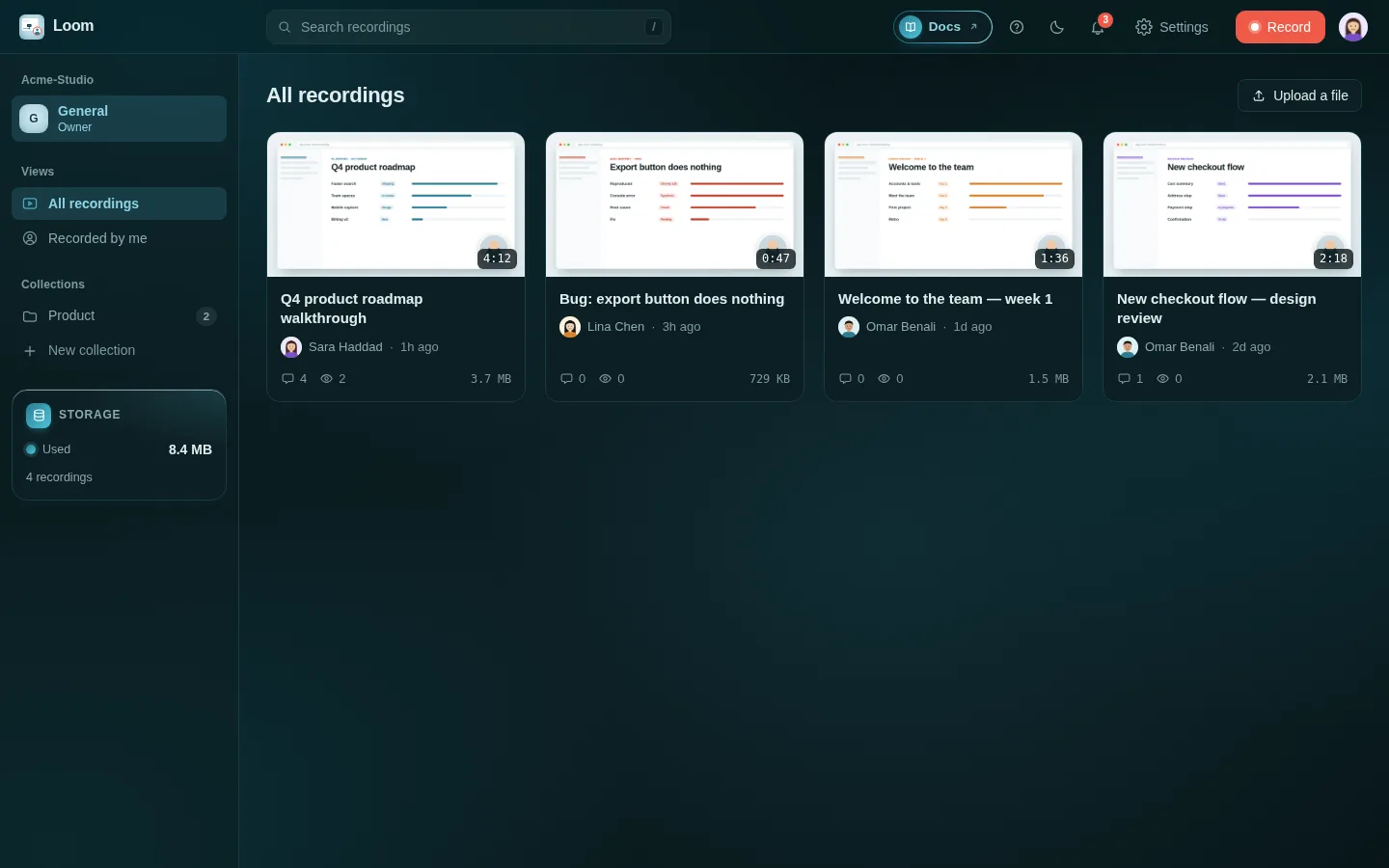
The sun/moon button in the top bar switches between light and dark. Until you choose, Vistilla follows your computer's setting.
Install as an app
In browsers that support it (Chrome, Edge), use the install icon at the end of the address bar. Installed, Vistilla opens in its own window and has shortcuts to Record and Library.