Teams and roles
A team holds channels; a channel holds collections and recordings, like folders inside folders. Four roles decide who can watch, record and manage.
Teams, channels and collections
- A team (a workspace, or org, in the code) is the top level: your company, your club, your own private space. Its name is unique across all of Vistilla, like a username: one word, no spaces, ignoring capitals.
- A team holds one or more channels (teams, in the code). Every new team starts with a channel called General (عام when made in Arabic). A channel's name is unique inside its team, and may have spaces.
- A channel holds collections, which are folders of recordings (only its owners add, rename or delete them), and the recordings themselves. Invitations are to a channel.
In the website's sidebar, the team is a card on top (click it to switch team) and its channels are listed under Channels, whose + adds one (for the team's owners and admins). The pencil at the end of a channel's row (shown when you point at it) renames it, General included; its owners and admins can. In the app, the team menu at the top does the same: each team with its channels, New channel, and Rename.
New team in the account menu (your picture, top right; the team menu in the app) opens a window to name a team of your own. Anyone who can record somewhere can do this, including someone who joined by an invitation. You are its owner, you invite who joins, and no other team sees into it or shows its name. It starts with the channel General, and you land in it. The window checks the name as you type and says if it is taken or has spaces.
Team color: a team's owners and admins can give it a color of its own: teal (Vistilla's own), blue, indigo, violet, pink, red, orange, green or slate. On the website it is Team color in the list under the team card; in the app, in the team menu. The page takes each color as you pick it, and Save keeps it for everyone in the team. Vistilla then wears it while that team is being looked at, in light and dark: buttons, highlights, links, the team's badge, the storage card, and the background itself: the page, panels and lines are tinted with it too. An invitation page shows the inviting team's color; the sign-in and share pages keep Vistilla's own. Moving to another team shows that team's color.
Switching team: the account menu lists every team you are on, with how many channels it has and your role there; the one you are in has a tick. Click another and you go to the channel you last had open there. The sidebar shows only the team you are in.
Delete channel, at the top of Settings while that channel is chosen, deletes it with its recordings, collections, members and invitations, after you confirm. The team's owners and admins see it on every channel, and a channel's own owner on theirs; never on a team's last channel.
Delete team, beside it, deletes the whole team: all its channels with their recordings, collections, members and invitations, after you confirm. Only the team's owner sees it, and never on the last team they are in. In the Android app, Settings → Your teams has a bin beside each team and channel you may delete, with the same rules, and Collections a bin beside each collection of the open channel its owner may delete; each asks first.
Roles
| Role | Can |
|---|---|
| Viewer | Watch and comment. |
| Member | Everything a viewer can, plus record and upload, organise, and manage their own videos. A member cannot rename, move or delete a video someone else recorded: the server refuses it, and the library does not offer it. |
| Admin | Everything a member can, plus invite and manage people, moderate (resolve, pin, delete any comment), edit or delete any video, and see every video's Insights. |
| Owner | Everything an admin can. Whoever creates a team or a channel is its owner, and owners can make others owners too. |
AI settings belong to the whole workspace, so they need the workspace role of admin or owner, not just a team role.
Workspace owners and admins automatically have their role on every team in the workspace.
Inviting people
- Settings → Invites → Invite someone.
- Enter the email. Everyone is invited as a Member.
- Press Send invite. They receive an email with an Accept invitation button.
Invitations are valid for 14 days. Pending invitations are listed with Copy link and can be revoked. If the email could not be sent, the link is copied for you to pass on. When someone accepts, the person who invited them is notified. The invitation page also has Decline.
The email is written in your language: in Arabic, right to left, when you use Vistilla in Arabic, and its link opens the page in Arabic. The same goes for the email of a shared video, the sign-up code and the password reset.
Managing people
Settings → People lists everyone on the team.
- Each person's role is shown beside their name. Roles are not changed here: everyone invited joins as a Member.
- Admins can remove people. You cannot remove someone with a higher role than yours.
- A team always keeps at least one owner.
- Anyone can leave a team (Leave team), except its only owner.
Who can see a video
Each video has a visibility:
| Visibility | Who can watch |
|---|---|
| The team (default) | Everyone on the team. |
| Only me | The person who recorded it, plus the team's admins. |
| Whole workspace | Everyone in the workspace. This is supported by the server and the command-line uploader; the recorder offers only the first two. |
Share links work regardless of visibility. See Sharing. Who can watch is chosen when publishing; the video page has no control to change it afterwards.
Your account
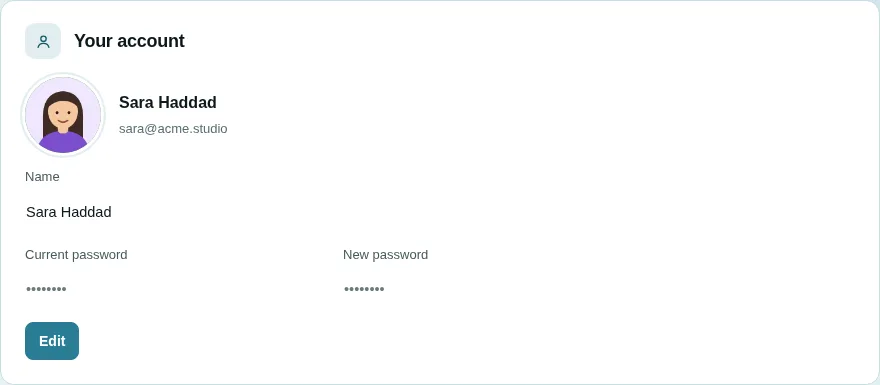
Settings → Your account shows your photo, name and email. Nothing can be changed until you press Edit; then:
- Upload photo (or click the photo) picks a JPEG, PNG or WebP image. Vistilla keeps the middle square, at 256 × 256 pixels. Remove photo goes back to your initials. Your photo replaces your initials everywhere: the top bar, library cards, comments, the activity bell, the people list, Insights, video pages and share pages. Like your name beside it, anyone who can see one of your videos or comments can see it.
- Name can be changed.
- Current password and New password change your password. Leave both blank to keep it. A new password signs you out everywhere, this device included; then you sign in with the new one.
Save lights up only once something has changed, and nothing (the photo included) is kept until you press it. Cancel puts everything back.