Watching a video
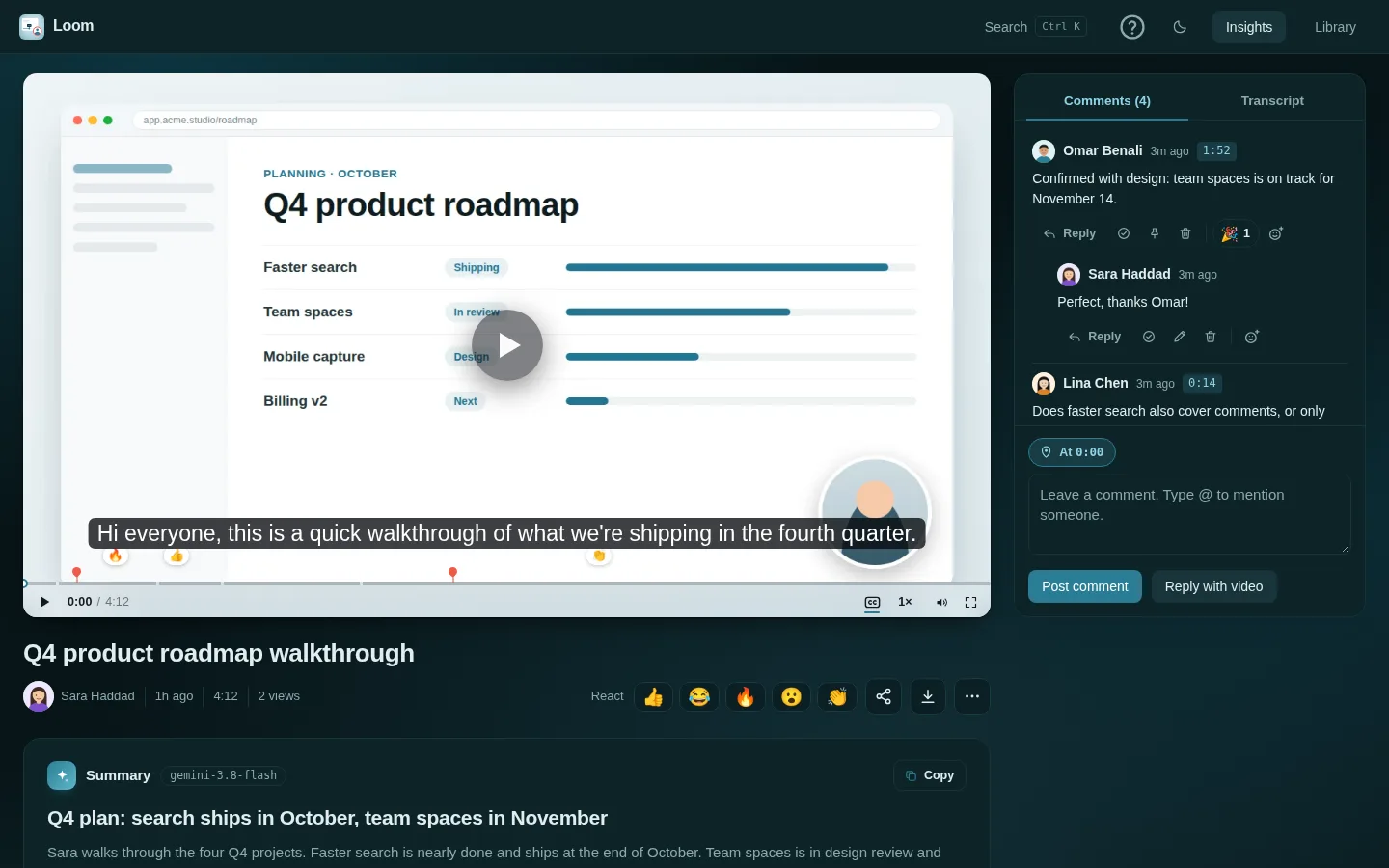
The player on the left, the conversation on the right, and the AI summary underneath.
A video page (/v/<id>) has the player on the left and the conversation on
the right. Below the player are the title, the reactions, the share, download
and ⋯ buttons, and then the AI summary when there is one.
The player
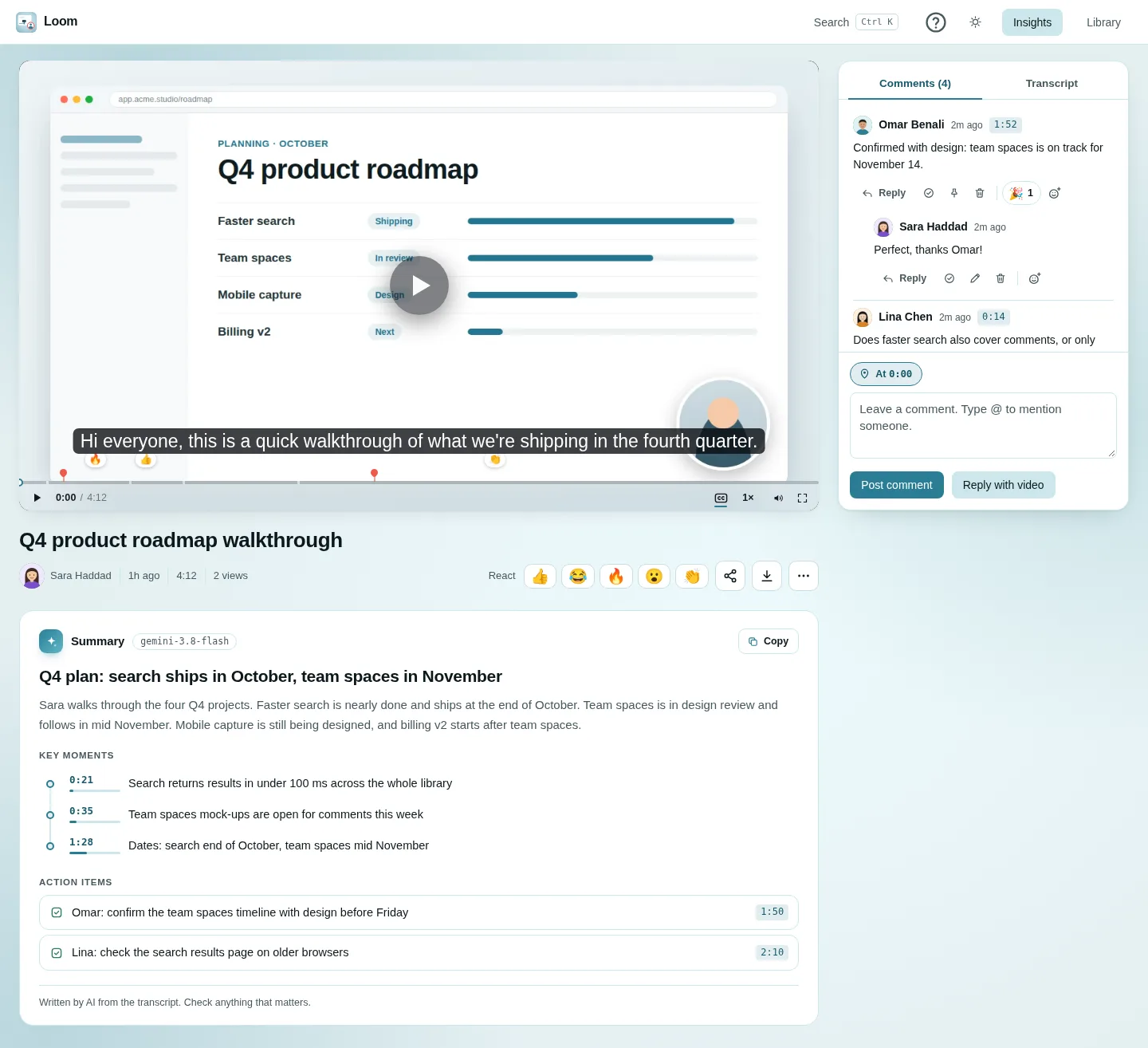
- Play / pause: the big button, a click on the picture, or Space.
- Timeline: click or drag to jump. While you drag, the line follows your pointer and the video jumps once, where you let go (each jump fetches the video at that spot, so one per pixel kept it waiting). If the picture waits, it is asked again only after 6 seconds with nothing arriving. Comment markers and chapters are drawn on it. Hover a marker to read the comment.
- Captions (CC): shown when there is a transcript. Vistilla remembers your choice.
- Skip silences: when a recording has pauses of 2 seconds or more, playback jumps over them, and a button turns that off (or on again). Vistilla remembers this choice too. Recordings that are more than 40% pauses are left alone.
- Speed: the
1×menu, from 0.75× to 3×, remembered. - Double-click the picture for full screen.
- Volume and full screen.
- Resume: Vistilla remembers where you stopped and continues from there next time. It only keeps a spot at least 10 seconds in and more than 10 seconds before the end, and a link to a specific second or to a comment wins over it.
See Keyboard shortcuts for every key.
Chapters
Chapters split the timeline into named parts, so a long recording reads like a table of contents: viewers see where each part starts, point at the timeline to read its name, and jump straight to the part they need instead of scrubbing. Useful for a demo with several features, a meeting with an agenda, or a walkthrough people come back to.
- Your own: ⋯ → Add chapter here adds one at the current second.
- Removing: ⋯ → Edit chapters lists them with their times; × strikes one out (press again to keep it) and Save removes the struck ones. In the app, the owner holds a chapter to remove it.
- From AI: when summaries are on, Vistilla suggests chapters by topic. It only does so if nobody has added chapters by hand.
The ⋯ menu (owner and admins)
| Item | Does |
|---|---|
| Rename | Changes the title. |
| Edit details | Description and tags. |
| Choose an image for the video | The picture shown on its card, in link previews and on the player before it plays: pick one from your computer; it is cut to fill 16:9. In the app, Image in the owner's row picks one from the phone. |
| Use this frame as the image | The same, from the frame on screen now: pause where you want, then choose it. |
| Add chapter here | Adds a chapter at the current second. |
| Add a link button for viewers | Buttons (for example "Book a call") that open a website, each shown with that site's logo: the icon the site shows in a browser tab, or, for a site behind a sign-in that gives none, a picture you pick by clicking the logo square (× goes back to the site's own). A logo picked for a site is remembered for that site: every button to it shows it from then on, for everyone, with nothing to pick again (Silsila's, whose sites are behind a sign-in, came preloaded from its repository). A site whose icon cannot be had at all (a sign-in wall, and no picture picked yet) shows its first letter on a colour of its own; a viewer signed in to that site may see its real icon, asked of it directly by their browser. Up to 5: + Add another button adds one, × takes one out (on the only one, it empties it; Save then removes the button). Viewers see them under the title, each as a small card with the site's logo on a white tile, the button's text over the site's address and an arrow (the first has a brand-coloured edge), and when the video ends. Empty them all to remove them. In the app, Links in the owner's row under the uploader does the same. |
| Cut the video | Cuts the start and the end off the recording, for good, for any video already published. A bar opens under the video: drag either end, or play to a moment and press Start here or End here; it says what you keep. Cut asks once, then the server cuts it ("Trimming this recording…" shows for a few seconds). Comments, chapters, reactions and transcript lines move with the video; those in a part cut away are dropped, and a comment there stays without its moment. The summary is written again if the team has an AI key. As in the recorder, the cut starts on the keyframe at or before the chosen second. A recording over about 750 MB cannot be cut. In the app, Cut in the owner's row does the same. |
| Delete | Deletes the video, after asking. |
The right-hand column
Two tabs:
- Comments: the conversation. See Comments and reactions.
- Transcripts: shown when transcripts are on. See Transcripts and summaries.
Download
The download icon saves the video file. On a shared link, download is only offered if the owner allowed it.
Messages you may see under the video
| Message | What it means |
|---|---|
| This recording is still uploading. | The recorder is still sending it. Comments open once it is published. |
| This recording did not finish publishing | Its upload stopped part-way. The owner sees how much arrived and a Publish what arrived button. See Recording. |
| Trimming this recording… it will play in a moment | The server is cutting the part you trimmed, in the recorder or with ⋯ → Cut the video. It takes a few seconds. |
| Transcripts and summaries are off | The video's team has no AI key. Admins get a Turn on button. |
Dark mode