The library
Every recording your team can see, with folders, tags, search inside what was said, and how much storage is left.
The library (/app) lists your team's recordings.
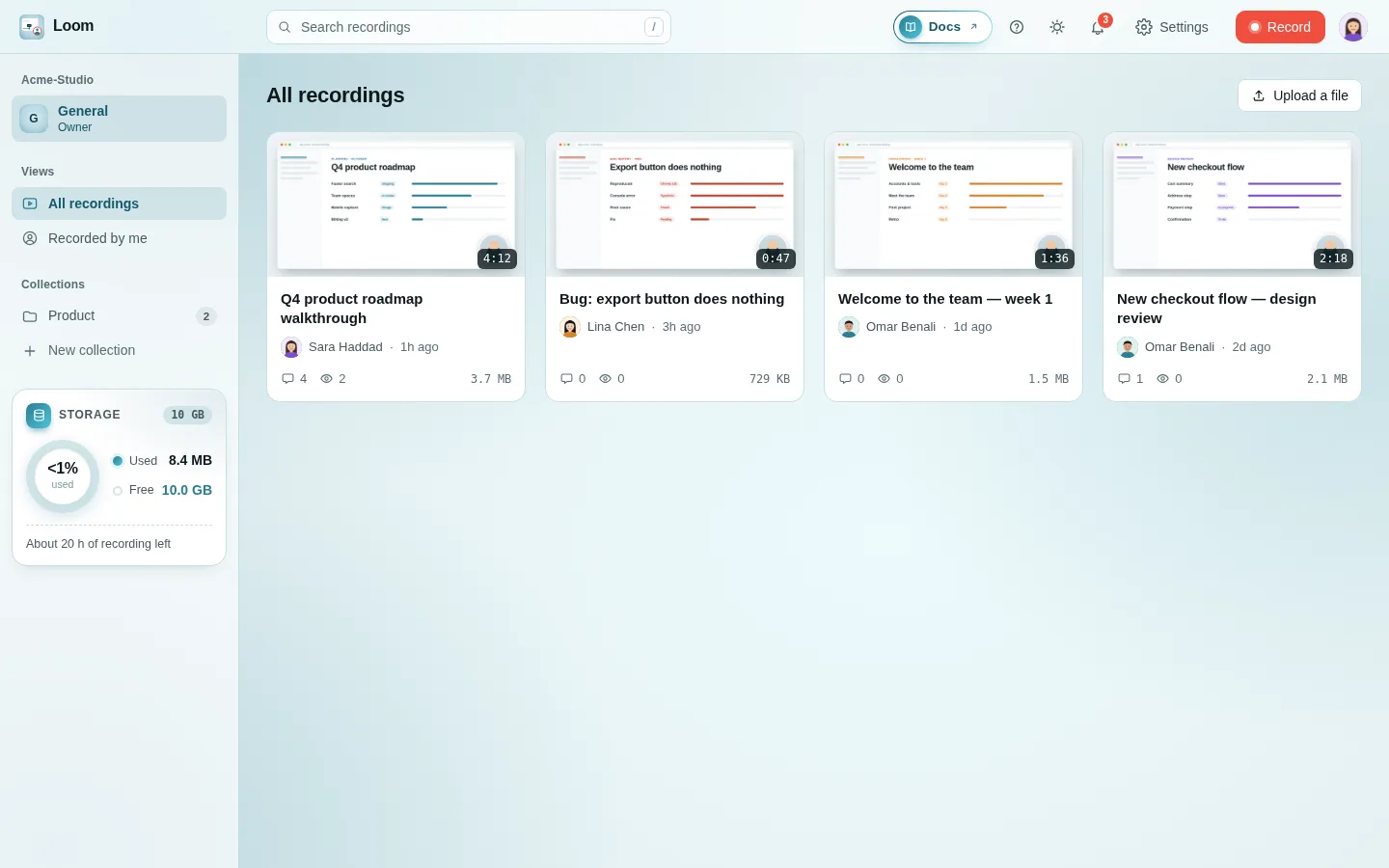
The sidebar
- Team card on top: the team you are looking at, your role and how many channels it has. Click it and a list of your teams drops under it, with New team at the end; pick one to switch.
- Channels: the team's channels, each marked #; the one you are in is tinted. The + beside the heading adds one, and the pencil at the end of a row (shown when you point at it) renames it.
- Collections, right under the channels: folders inside the channel. The + beside the heading creates one, in the channel you are in. Hover a collection to rename (pencil) or delete (bin) it. Deleting a collection keeps its videos; they simply leave the collection. Only the channel's owners (and the team's) add, rename or delete collections; everyone else sees them without the + and the buttons.
- Collections as folders: in All recordings, the channel's collections also show above the recordings, as folders, each with its picture, its name and how many recordings it holds. A recording in a collection shows only inside its folder, not again beside it; All recordings lists the ones in no collection; with folders there, it shows no "No recordings here yet" box. Click one to open it; drop recordings on it to move them in. An owner gives a folder a picture with the round picture button on it (shown when you point at it), or by right-clicking it (Add an image, Change image, Remove image, Rename, Delete). Any picture from your computer works: it is cut to fit the folder. Without one, the folder is a plain teal-to-coral card.
- Views
- All recordings: everything in the channel you can see.
- Recorded by me: only your own.
Video cards
The three round buttons beside the upload button lay the recordings out as large cards, a grid or a list (a picture and the words beside it, one recording to a row), as in the Android app. The browser remembers your choice.
Sort, the button before them, puts the recordings in order: Newest first (the start), Oldest first, Name, A to Z, Name, Z to A, Longest first, Shortest first or Most viewed. By name, titles that start with a number go by that number, so 3-demo comes before 20-demo. It works in every view, collections and search included, and the browser remembers it. In the app, the round sort button beside the layout switch does the same.
Each card shows:
- the poster image and length. A recording still on its way shows a ring with the percentage that has arrived and the size so far, updated every few seconds (live, with the time left, in the tab that is sending it). It is marked private until it is published. If nothing new arrives for two minutes the ring turns amber and says Upload stopped: open the video to publish what arrived;
- the title, who recorded it and when;
- the number of comments and views, and the file size.
Click a card to open the video.
Right-click menu
Right-click a card for its menu:
| Item | Does |
|---|---|
| Open | Opens the video. |
| Rename | Renames it (one video selected). |
| Move to channel | Moves the selected videos to another channel of the team (they leave their collection). In the app: the ⇄ button on a video's page. |
| Move to collection | Puts the selected videos in a collection of this channel. |
| Take out of this collection | Shown inside a collection. |
| Select all | Selects every video shown. |
| Clear selection | When several are selected. |
| Delete / Delete N | Deletes the selected videos, after asking. |
To select several videos:
- tick their checkboxes;
- Shift-click a range;
- or press Ctrl+A to select every video shown.
Delete (or Backspace) deletes the selection, and Esc clears it.
You can also drag videos onto another channel, or onto a collection, in the sidebar to move them there.
Storage
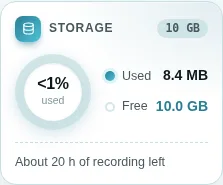
At the bottom of the sidebar, the Storage card shows how the space is shared out:
- the storage's size in the corner, when the server has one set (10 GB on the hosted instance);
- a ring: the used part drawn round it, this team's share in teal and other teams' paler, and the free part left open, with the percentage used in the middle;
- Used and Free, in megabytes or gigabytes;
- about how many hours of recording the free space holds, at roughly half a gigabyte per hour.
The ring turns amber past 75% and red past 90%. When it is full, the card says so; delete old recordings to make room. On a server with no size set, the card shows the space used and the number of recordings.
Search
Type in Search recordings, or press / to jump there. Search looks in:
- titles and descriptions;
- tags;
- what was said: the transcript, when transcripts are on;
- comments.
When a video matches on something it said or a comment, the card shows where: SAID 0:04 … for speech, or the comment that matched. Click it to open the video at that second.
Quick search (Ctrl+K)
Ctrl+K (⌘+K on a Mac) opens a command palette on the library, recorder, settings and video pages. It searches recordings across all your teams and offers shortcuts to pages such as Settings.
Tags
Tags are set on a video's page (⋯ → Edit details). They show on the cards, and clicking a tag, in the library or on a video page, shows only the videos with that tag.