Recording
Pick what to record, press Start recording, then trim, name and publish. The video uploads while you record, so publishing is quick, even for a two-hour meeting.
Click Record in the top bar to open the recorder. Its head shows the three steps, Source, Record and Publish: the one you are on is filled and those done are ticked.
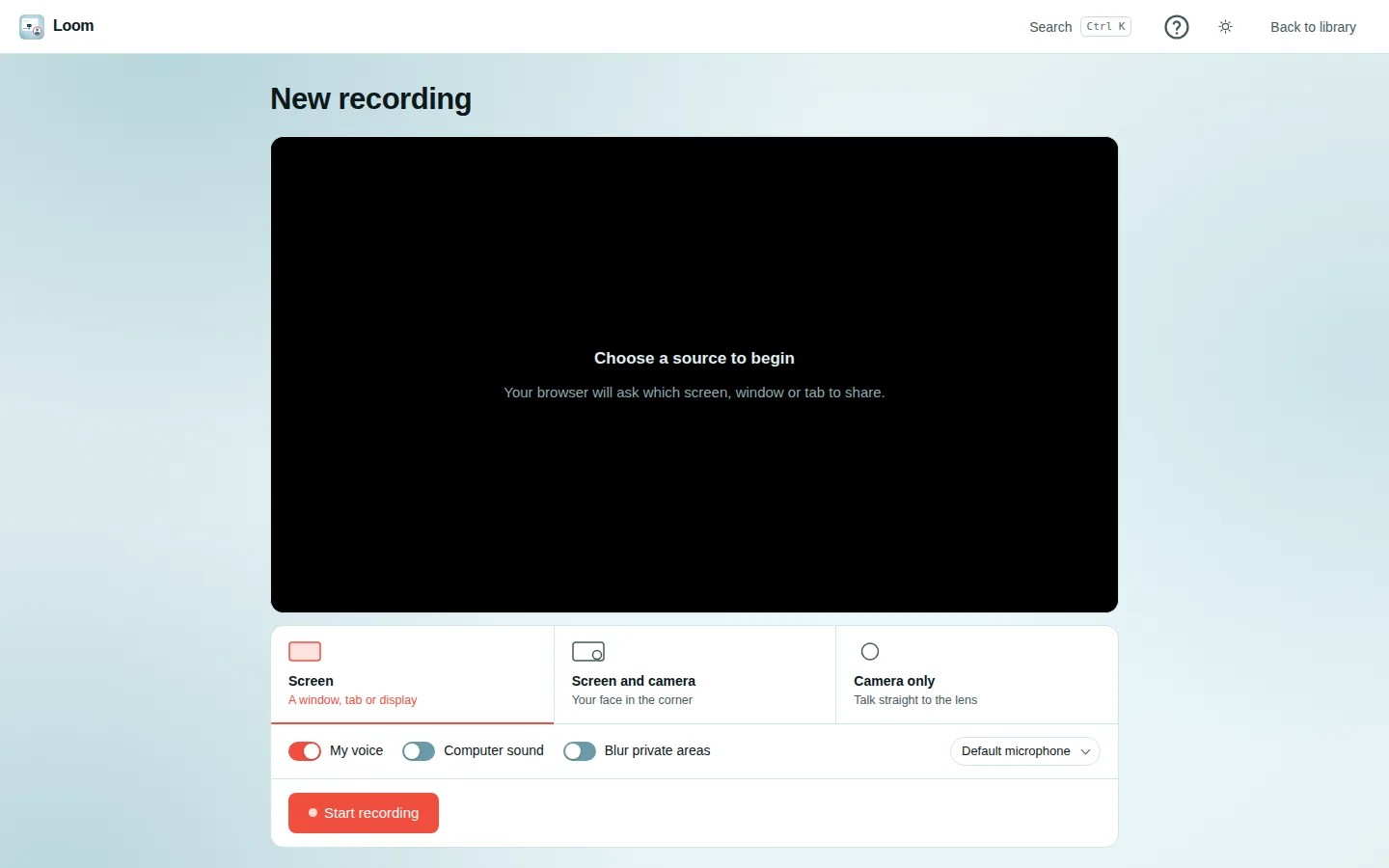
1. Choose what to record
| Mode | What is captured |
|---|---|
| Screen | A window, a browser tab or a whole display. |
| Screen and camera | Your screen with your face in a round bubble in the bottom-right corner. |
| Camera only | Just your camera. |
Your browser asks which screen, window or tab to share. That choice is the browser's, not Vistilla's, so Vistilla never sees anything you did not pick.
2. Choose the sound
- My voice: your microphone. When you have more than one, pick it from the list. Echo cancellation and noise suppression are on.
- Computer sound: the sound your computer plays.
- When you share a tab, the tab's own audio is used.
- Otherwise Vistilla looks for a "monitor" or loopback input.
- On Linux,
scripts/linux-system-audio.sh oncreates one called Vistilla-system-sound.
My voice can be switched off and on while you record: off mutes the microphone at once (the recording goes on, silent of your voice), on brings it back. Your voice can only come back into a recording that started with it, or when the browser already allows the microphone. Computer sound uses the tab's own sound, or the computer's loopback input ("Monitor of …", "Stereo Mix"); a microphone is never taken for it. When neither is there (the whole screen shared in a browser that gives no screen sound), the recording goes on without it, and a note says how to include it next time: share a browser tab and tick Also share tab audio.
Voice and computer sound are mixed into one track. If a source you asked for could not be captured, Vistilla says so before the countdown, and after you stop it shows what was actually recorded.
3. Blur private areas (optional)
Turn on Blur private areas. Once capture starts (during the countdown and while recording), drag boxes over anything private: an email inbox, a password, a customer's name.
- Up to 8 boxes.
- The boxes are blurred into the recorded picture itself, so nobody can remove the blur later.
- Not available in Camera only mode.
4. Record
- Press Start recording. A 3-2-1 countdown runs.
- While recording, a red REC badge shows the time.
- Pause and Resume as often as you like. Paused time is not recorded.
- Press Stop when done.
Uploading while you record
Vistilla uploads the recording in 5 MB pieces while you record. When you stop, most of it is already on the server, so publishing is quick even for long videos. If a piece fails, Publish carries on from that piece, still in pieces, so nothing that already arrived is sent again.
The recording appears in the library as soon as you start, marked private, its poster a ring showing how much has arrived. Only you see it until you publish.
5. Trim, name and publish
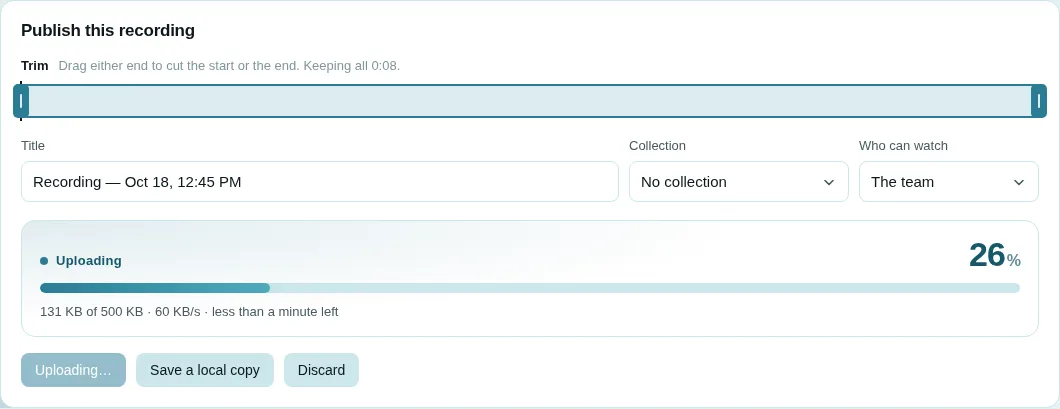
After stopping you see Publish this recording.
- Trim: drag either end of the bar to cut the start or the end. The arrow keys move a grip by 0.5 s, and Shift + arrow by 5 s. Undo trim puts it back. The preview only plays the part you keep.
- Title: defaults to Recording — date, time.
- Collection: optionally put it straight into a collection.
- Who can watch:
- The team: everyone on the team.
- Only me: you, plus the team's admins.
Then choose one of:
-
Publish: uploads anything left (Uploading…), saves the details and a poster image (Saving…), and opens the video page. While it uploads, a meter shows:
- the percentage sent, also in the browser tab's title;
- how much has gone, for example 612 MB of 1.49 GB;
- the upload speed and about how long is left.
Closing the page during the upload asks first. Each piece is tried 4 times, and a piece that stops moving is given up after 90 seconds, so if the server is unreachable (for example while it restarts) the error can take a few minutes to appear. Try again then carries on from where it stopped. - Save a local copy: downloads the recording to your computer. - Discard: throws it away, after you confirm, and takes you back to the library.
Closing the page throws the recording away
A recording that was never published is deleted from the server when you close or leave the recorder page (the browser asks first). To keep one you cannot publish right now, press Save a local copy before leaving.
If publishing never finished
Sometimes the page cannot say goodbye: the browser crashed, the computer slept, the network dropped, or the server restarted mid-upload. Then the recording stays, and its video page says "This recording did not finish publishing", with how much arrived:

- If the recorder page is still open, press Publish there to send the rest, or Save a local copy and upload that file from the library.
- Otherwise press Publish what arrived. If nothing arrived, the card says so and has a Delete button instead.
What arrived is kept for 7 days, then thrown away.
Trimming happens on the server
The cut is made on the server, without re-encoding, at the nearest keyframe at or before the start point. The recorder asks for a keyframe every second, so the cut usually lands within a second of where you put it. Some browsers (Firefox, for one) ignore that request, and their cuts can land further back. A trimmed video shows "Trimming this recording… it will play in a moment" for a few seconds after publishing.
Which team
The recording is published to the team you last had open in the library.
On phones and tablets
Only Camera only works on phones and tablets; the screen options say Needs a computer.
Uploading a file instead
In the library, the round upload button (an arrow, next to the title) accepts WebM, MP4, MOV, MKV and OGG video. An uploaded video gets the same player, comments, sharing and AI features as a recording.
- Its title is the file's name, and the team can watch it. Change either afterwards under ⋯ → Edit details.
- Uploading while a collection is open puts the file in it.
- Files of 64 MB or less go up in one piece. Bigger files go up in 16 MB parts.
- The same upload meter as the recorder's appears above the library: the percentage (also in the tab's title), the size sent, the speed and the time left.
- Cancel upload under the meter stops it and deletes what was sent.
- Keep the tab open until the video page opens: the browser asks before leaving. Unlike the recorder, a library upload cannot pick up where it stopped.
How long can a recording be?
Long enough for a meeting. Recordings are made at a modest bitrate (about a gigabyte for two hours of a mostly still screen) and uploaded in small parts while you record, so:
| Limit (default) | |
|---|---|
| A recording, or a file uploaded in parts | 4 GB (VISTILLA_MAX_RECORDING_BYTES) |
| A file sent in one piece (only files up to 64 MB) | VISTILLA_MAX_UPLOAD_BYTES: 2 GiB by default, 100 MB on the hosted instance, which is what its Cloudflare front door accepts per request |
On the hosted instance, the free storage (10 GB) is the real limit: about ten two-hour meetings.
A recording over 1.5 GB (or over about 750 MB if you trimmed it) is too big for the server to cut, so a trim is not applied and the whole recording is published. It still plays, is transcribed and summarised, and you can still jump to any moment in it: the server adds its index a different way, without the room a cut needs.
To record a meeting, choose Screen, turn on My voice and Computer sound (so the other people are recorded too), and share the meeting's tab or window.
Supported browsers
Recording uses standard browser features: screen capture, camera, the
MediaRecorder API and Web Audio. It works in current Chrome, Edge, Firefox
and Safari. Recording needs HTTPS, or localhost during development; a
browser that cannot record says so on the page.